Why can one large Texture Atlas be much more optimized than many small textures?

Minh Khoa
Author
When looking at 20 small icons on one screen UI, the natural reflex is:
A small image should definitely render more lightly than a large one.
True if you only look at each file. But GPU it does not only care whether the image is large or small. It also cares every time Texture, Material, and render state must be changed.
Texture Atlases are faster mainly because they reduce the number of Texture changes and pave the way for Batching — not because one large image naturally uses less VRAM .
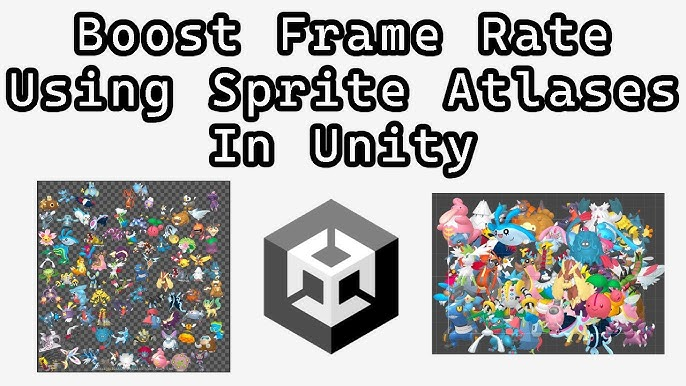 ## 1. Imagine GPU being a printer
You have 20 images and each image is on its own sheet of paper.
Every time one image is printed, the printer has to:
- Discard the old sheet.
- Take a new sheet.
- Realign the machine.
- Keep printing.
If the 20 images are on the same large sheet, the printer only needs to load the paper once, and then print different regions on that sheet.
In GPU, the region to sample is defined by UV:
Nhiều Texture:
Bind A → Draw → Bind B → Draw → Bind C → Draw

Texture Atlas:
Bind Atlas → Draw A, B, C bằng các vùng UV khác nhau
Texture Atlas does not make images A, B, and C disappear. It only lets them share the same Texture source.
2. The biggest benefit: reducing Draw Calls and Batch Breaks
Two Sprites can use the same Shader, but if they use two separate Textures, Unity usually has to change render state between them. Changing Texture or Material can break the Batch.
When you put Sprites into the same Atlas:
- They can share the same Texture and Material.
- Unity can more easily group compatible Sprites into the same Batch.
- CPU it has to prepare and send fewer render commands.
- GPU there is less waiting on unnecessary state changes.
For example, a screen with 20 icons:
20 Texture riêng
→ có thể tạo ra nhiều Batch / Draw Call

1 Sprite Atlas
→ có thể giảm còn 1 hoặc vài Batch
Do not rigidly assume that “1 Atlas always equals 1 Draw Call”. Mask, Material, Shader Pass, render order, Canvas, and Sorting can still split the Batch.
3. Does an Atlas automatically save VRAM memory?
Not necessarily.
Suppose there are 16 Textures, each Texture is 256 × 256:
16 × 256 × 256 = 1,048,576 texel
If they fit into one Atlas 1024 × 1024:
1024 × 1024 = 1,048,576 texel
If the compression format is the same, there is no mipmap, and padding is ignored, the image data amount is almost unchanged.
The difference is:
VRAM: gần như tương đương
Texture switch: 16 → 1
Khả năng Batching: tốt hơn nhiều
An Atlas can only be lighter if packing helps cut away transparent regions or empty space. Conversely, padding and large empty areas can even make the Atlas heavier.
In other words:
An Atlas usually optimizes CPU rendering first; whether memory is reduced depends on the packing method.
4. A Texture Atlas that is too large can backfire
Suppose the HUD only uses 10 icons, but you merge the Shop, Event, Tutorial, and Reward icons into one huge Atlas.
When the HUD needs one Sprite, Unity may have to load an Atlas that also contains unused parts. The result is fewer Draw Calls but more memory usage and longer load times.
Some other risks:
- Atlas
2048 × 2048only needs to spill over4096 × 4096for the area to increase 4 times. - Sprites that need different compression quality are forced to share the same Atlas settings.
- Mipmap makes the Texture increase by about 33% storage size on disk and in memory.
- UI that always display at the correct size usually do not benefit from mipmap.
- Too little padding can cause the color of the neighboring Sprite to bleed when filtering or using mipmap.
- Enabling
Read/Writecauses Unity to keep an extra Texture copy in memory.
Therefore, “a larger Atlas is more optimized” is only true when it contains assets that are often used together.
5. Practical Atlas splitting
The easiest rule to remember:
Group the Sprites that are rendered together, loaded together, and have the same settings. Do not put the entire Project into one Mega Atlas.
For example:
HUD Atlas       → HP, coin, button gameplay
Shop Atlas      → item icon, price tag, shop frame
Popup Atlas     → reward, confirm, warning
Gameplay Atlas  → character, prop, environment
You should split Atlases when Sprites:
- Appear in different Scenes or screens.
- Have different load/unload lifecycles.
- Need different compression formats, mipmaps, or filter modes.
- Belong to groups that are used often and rarely used.
- Are in separate Addressables groups that need to be loaded independently.
6. Quick checklist in Unity
🟩 Enable Tight Packing if the Sprite shape is suitable for reducing transparent areas.
🟩 Set Padding safely enough, especially when there is mipmap or camera zoom.
🟩 Disable Read/Write if the code does not read or modify pixels.
🟩 With UI Screen Space does not scale, so mipmaps are usually turned off.
🟩 Open Frame Debugger to see whether Draw Calls really decrease and where batching is broken.
🟩 Open Memory Profiler after going to the correct screen to check which Atlas is in memory.
🟩 Measure on the target device; do not conclude only from Game View.
7. One-sentence summary
A large Texture Atlas can be much more optimal than many small Textures because GPU you only need to bind one Texture and Unity has more opportunities for batching; but an Atlas does not automatically reduce VRAM, and a Mega Atlas containing assets that are not used together can make memory and load time worse.